Desktop Goose on Mac: How to Run It in 2026 (and 5 Better Pets)
Desktop Goose has no native macOS build, but you can still run it. Here's how, plus the five Mac-native desktop pets that scratch the same itch without the chaos.


Desktop Goose has a Mac build on samperson's itch.io page, but in 2026 it is flaky on Apple Silicon. It runs through Rosetta, needs Accessibility permission, and is intentionally annoying by design. If you want pure chaos, follow the install steps below. If you want a friendly Mac-native pet that won't drag your Xcode windows around, look at Dockling (pixel pet from your photo, $2.99 once) or Shijima (free Mac-native Shimeji port). Get Dockling →
Every few months a new wave of Mac users discovers Desktop Goose, usually after watching an old TikTok of a goose dragging an Excel spreadsheet across someone's screen. Then they Google “desktop goose mac” and find a confused mess of itch.io comments, abandoned forks, and Reddit threads from 2021.
So here is the actual state of Desktop Goose on macOS in 2026, how to install it if you really want the chaos, and the five Mac-native pets that most people end up keeping instead.

What is Desktop Goose?
Desktop Goose is a tiny app made by samperson that puts a pixel goose on your desktop. The goose walks around, honks, drags your windows, drops fake meme images, types nonsense into focused text fields, and steals your cursor. It launched in early 2020, right as Untitled Goose Game cemented “menacing goose” as an internet aesthetic. It went viral on Twitter and became a fixture of streamer setups for about six months.
It is technically a desktop mascot, in the same lineage as Bonzi Buddy (see our BonziBuddy for Mac context) and Shimeji, but meaner. It is pay-what-you-want on itch.io.
Does Desktop Goose work on Mac?
Yes, with caveats. There is a Mac build available on the same itch.io page as the Windows build, but it has not been meaningfully updated since around 2021. That means three real problems on a 2026 MacBook:
- No Apple Silicon native build. The goose ships as an Intel binary, so on M-series Macs it runs through Rosetta 2. macOS will quietly install Rosetta the first time you launch it if you don't already have it.
- Accessibility permission required. Desktop Goose cannot drag windows or steal your cursor without macOS Accessibility access. This is a real permission grant in System Settings, not a checkbox in the app.
- Gatekeeper will block the first launch. The build isn't notarized, so macOS Sonoma or Sequoia throws the “cannot verify the developer” warning. Right-click Open to bypass. Harmless.
So the short answer to “does desktop goose mac still work?” is: yes, the way a 2018 abandonware app works. It runs, it's quirky, don't expect a polished shipping product.
How to install Desktop Goose on Mac
Five steps to get desktop goose mac running. Ten minutes if Rosetta is already installed, fifteen otherwise.
- Go to samperson.itch.io/desktop-goose and download the macOS build. It comes as a .zip.
- Unzip the archive and drag
Desktop Goose.appinto your/Applicationsfolder. - Right-click (or Control-click) the app and choose Open. macOS will warn that the developer isn't verified. Click Open on the dialog. You only have to do this once.
- macOS will ask to install Rosetta 2 if you're on an M1, M2, M3, or M4 Mac and don't have it. Let it. It's a few hundred megabytes, signed by Apple, and harmless.
- Open System Settings → Privacy & Security → Accessibility and toggle Desktop Goose on. Without this it cannot drag windows or grab the cursor and you'll be left with a goose that just walks in circles.
Optional: enable notifications for Desktop Goose in System Settings if you want the fake meme alerts. Don't do this on a work machine.
What you get (and what you might not want)
Once it's running, the goose will:
- Walk across your screen, mostly along the dock and edges.
- Drag your active window around if you leave it idle, sometimes off the screen entirely.
- Drop fake meme images onto your desktop. They're actual files, so you have to delete them later. This is the part most people forget.
- Steal the cursor and run away with it for a few seconds at a time.
- Occasionally type random nonsense into whatever app currently has focus. Yes, including a Slack draft.
- Honk.
That last bullet is the entire selling point and also the entire problem. Desktop Goose is genuinely funny for a day, mildly amusing for a week, and then becomes the reason you accidentally send “asdfghjkl” to your Director of Engineering. It is an annoying desktop pet mac by design.
Pets on your desktop sit on a spectrum. On one end: Desktop Goose, built to interrupt. On the other end: Dockling, built to keep you company while you focus. Both are valid. Pick based on your mood, not your curiosity. If you're reading this from a work laptop, you probably want the calm one.
Desktop Goose vs the Mac-native alternatives
| App | Mac native | Apple Silicon | Free | Annoyance | Work-friendly | Best for |
|---|---|---|---|---|---|---|
| Desktop Goose | – (Rosetta) | – (Rosetta) | PWYW | Maximum | No | Streaming, jokes, chaos |
| Dockling | ✓ | ✓ | $2.99 once | Zero | Yes | Focus + a tiny friend |
| Shijima | ✓ | ✓ | Free | Low | Mostly | Shimeji fans, no Java |
| eSheep | – (port) | Partial | Free | Low | Yes | Y2K nostalgia |
| Cathodemon | ✓ | ✓ | Free | Low | Yes | Cat people |
| DPET | ✓ | ✓ | Freemium | Medium | Mostly | VTuber-style 3D pets |
5 better Mac-native pets if you actually want to keep one
1. Dockling: friendly pixel pet from your photo

Dockling is the opposite philosophy from Desktop Goose. Instead of chaos, it gives you a single pixel pet that lives in your dock, your menu bar, or right inside the MacBook Pro notch, and it walks while you focus and curls up to sleep when you take a break. The pet is generated from a photo you upload, so the one on your screen is genuinely yours, not a stock asset.
Native to Apple Silicon, no Rosetta, no Accessibility permission, no fake memes dropped on your desktop. It's $2.99 once, no subscription. It also doubles as a Pomodoro timer, which is the actual reason most people keep it past week one. You can also make a custom pet from your own pet if you want to put your dog in the dock, and our pet from photo AI guide walks through how that generation actually works under the hood.
2. Shijima: Mac-native Shimeji, no Java
Shijima is a Mac-native rewrite of Shimeji, the Japanese desktop mascot system. Same little anime-style characters that crawl on your windows, but without the cursed Java install Shimeji-ee requires. Apple Silicon native, free, and surprisingly polished. If you want multiple pets at once and you came from the Shimeji world, this is your stop. We have a longer write-up at our Shijima review.
3. eSheep / Sheep on My Desktop
eSheep is a 1990s Windows classic ported to Mac multiple times. A tiny pixel sheep walks across your screen and occasionally falls off the edge. Calmer than Desktop Goose, Y2K nostalgia, free. Ports are unsigned, so right-click Open like you would for the goose.
4. Cathodemon
Cathodemon is a free pixel-art cat that walks across your menu bar and dock. Apple Silicon native, no chaos, no permissions required beyond launching the app. If you want the simplest possible chaos pet mac antidote, and you're a cat person, this is the lowest-friction option in this list.
5. DPET / Desktop Pet Engine
DPET supports full 3D VTuber-style models on your desktop. Apple Silicon supported, freemium. Heavier on your GPU than the pixel options, but if you want a rigged anime character on screen, this is the one.
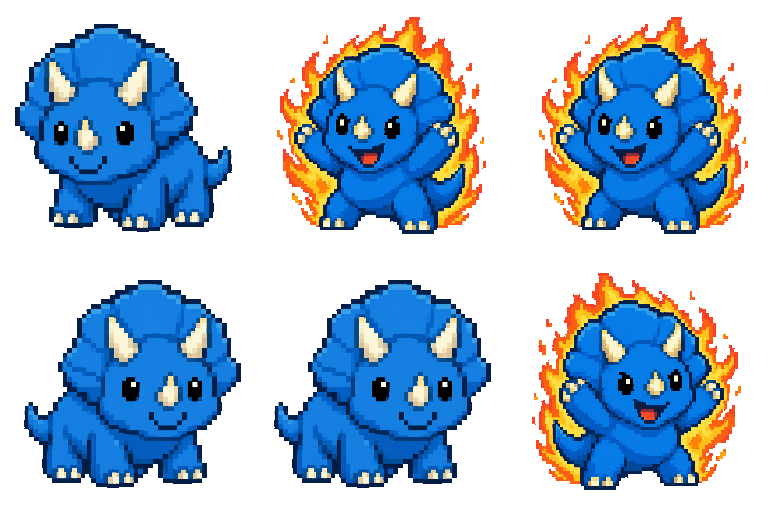
The annoyance axis: chaos or comfort?
Here's the real question. Why do you want a pet on your desktop?
If the answer is “to make a friend laugh, record a TikTok, or ruin a stream on purpose,” install Desktop Goose. It is genuinely good at being chaotic. It'll honk, drag your Discord out of frame at exactly the wrong moment, deliver the bit. Then uninstall it before Monday morning.
If the answer is “I just like having something alive on my screen while I code,” you want the opposite app. Dockling, Shijima, and Cathodemon all live in that calm design space. They stay out of the way, because the people who keep them installed are working.

Should I install Desktop Goose on my Mac?
Try desktop goose mac once on a personal machine. It's a small piece of internet history, the install takes ten minutes, and you owe yourself the experience of watching a pixel goose drag your Spotify window into the void at least once.
But don't install it on your work Mac, and don't expect it to be the desktop pet you keep around. For the keep-around slot, the right answer in 2026 is a Mac-native pet that doesn't fight you. Our pick is Dockling at $2.99. We also wrote a longer guide to desktop pets for Mac, a cat-on-screen Mac field guide, and a Shimeji-on-Mac walkthrough.
FAQ
Is Desktop Goose free on Mac?
Pay-what-you-want on samperson's itch.io page. You can technically download it for $0, with a $5 suggested price. The Mac build sits on the same page as the Windows one.
Does Desktop Goose work on M1, M2, M3, or M4 Mac?
It runs, but it isn't Apple Silicon native. macOS will run it through Rosetta 2, which it'll install for you on first launch. You also have to grant Accessibility permission before the goose can actually drag your windows. Performance is fine on every M-series chip, just not buttery.
Is Desktop Goose safe?
Yes. It's made by a known indie dev with a long itch.io track record, and the file is hosted on itch's CDN. Gatekeeper will warn you because the build isn't notarized, which is normal for itch.io apps. The goose itself does nothing malicious, it just honks and ruins your meeting.
Why is Desktop Goose so annoying?
Because that's the bit. It's built to be a tiny chaos agent, not a productivity tool. If you want a desktop pet that does not interfere with work, you want a different app. That's the entire reason this article exists.
What's the Mac equivalent of Desktop Goose?
There isn't an exact one. Desktop Goose's chaos is its whole identity, and most Mac developers correctly chose not to replicate that. The closest spiritual cousins on macOS are Dockling (friendly pixel pet, $2.99 once), Shijima (Mac-native Shimeji, free), and Cathodemon (free pixel cat). All three are calmer than the goose, which is also why all three have longer install lifespans.
Can I run Desktop Goose alongside Dockling?
Yes, but you probably don't want to. Dockling is ambient and predictable, the goose is loud and unpredictable. Stack them and the goose wins because it grabs the cursor. As a daily setup, pick one.
Get a pixel pet that lives in your dock.
Pomodoro timer, focus streaks, and a tiny friend generated from your photo. Native macOS, $2.99 one-time.