Shijima for Mac: The Best Shimeji Port for macOS in 2026 (Plus What Beats It)
Shijima brings real Shimeji desktop pets to macOS without Java. Here's how it works, what it does well, and the modern Mac-native alternative that ties pets to a focus timer.
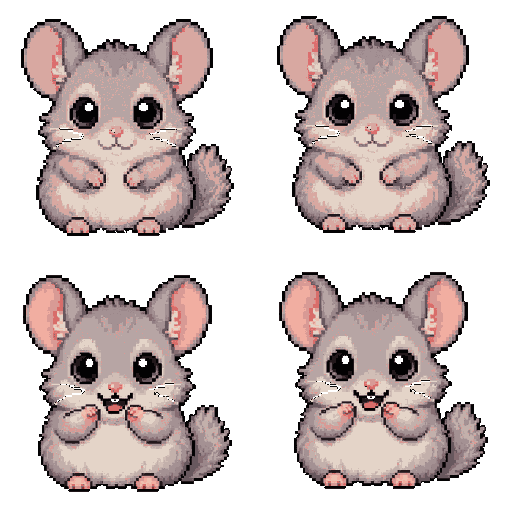
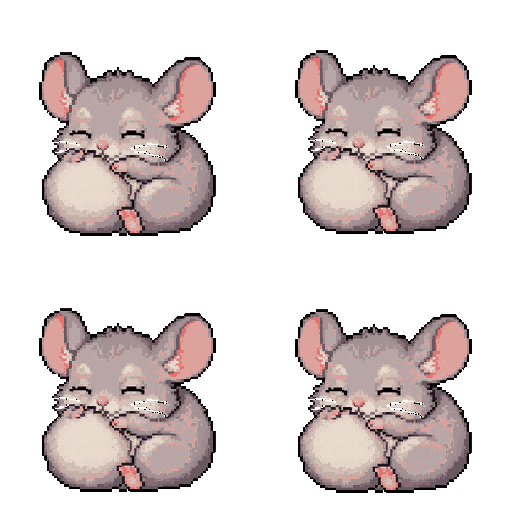
Shijima is the best Shimeji port for Mac in 2026 if you want the classic Japanese desktop mascot experience without installing Java. It is free, open source, runs natively on Apple Silicon, and reads the existing Shimeji-ee mascot library directly. If you also want your pet to tie to a Pomodoro timer and live in your menu bar or notch, Dockling is the modern Mac-native take, $2.99 once. Get Dockling →
For years, the only way to run Shimeji-style desktop pets on a Mac was to install a JDK, drag a folder of sprite XML into a Java app built around 2013, and pray it survived the next macOS release. Apple stopped shipping Java years ago, and the Shimeji-ee experience on macOS has been quietly broken for most users ever since.
Then a developer named pixelomer shipped Shijima, a native cross-platform Shimeji port that runs on macOS, Linux, and Windows without Java. It reads the same .xml configuration files Shimeji-ee uses, so the entire decade-old library of fan-made mascots works on day one. If you have been looking for a real Shijima Mac install, this is the project.
We installed Shijima on Mac, dropped in a handful of mascot packs, and ran it for a week. Here is the honest review of what works, what does not, and where it sits relative to a modern Mac-native pet like Dockling.
What is Shijima?
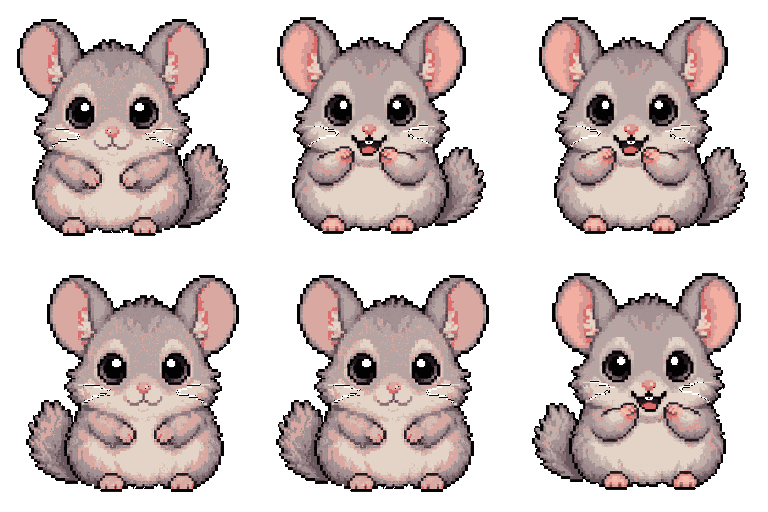
Shijima is a free, open-source Shimeji port built by pixelomer and distributed on itch.io. It is pay-what-you-want, the source is on GitHub, and it ships as a native binary for macOS, Linux, and Windows. No Java runtime, no Rosetta on Apple Silicon.
The crucial detail is sprite compatibility. The Shijima Mac build reads the same XML + PNG folder structure that Shimeji-ee uses, so every mascot pack made for the original Java app works with zero conversion. That is the whole reason a Shijima Shimeji Mac install is worth doing: you get the decade-old library of fan-made characters without the Java pain.
If you have never seen a Shimeji: they are tiny animated mascots, usually anime characters, that walk across your screen, climb window edges, fall off the top of your monitor, and occasionally spawn copies of themselves. You can grab one with the mouse and throw it. See Wikipedia for the lineage. Shijima Mac is the macOS-friendly way to run them.
Why a Mac-native Shimeji port matters
The original Shimeji and Shimeji-ee were Java apps. That was fine in 2010. It is rough in 2026 because Apple stopped bundling Java with macOS years ago, and getting a JDK installed on a modern Apple Silicon Mac is a chore.
We covered the setup pain in our Shimeji for Mac guide. The short version: it works, but the install path is rough enough that most people give up halfway. A mac native shimeji port like Shijima removes that entire tax. You download a .app, drag in a sprite folder, launch. That is the whole flow, and it is why “shimeji without java mac” is one of the most-searched phrases in this niche, and why a Shijima macOS build matters.
How to install Shijima on Mac
The Shijima Mac install takes about three minutes if you already have a mascot pack ready, five if you do not.
- Go to pixelomer.itch.io/shijima and download the macOS build. Pay what you want, $0 is fine.
- Unzip and drag
Shijima.appinto your/Applicationsfolder. - Right-click the app and choose Open. macOS Gatekeeper will warn you because the binary is not notarized under a paid Apple Developer ID. Click Open in the dialog. You only need to do this once.
- Grab a Shimeji mascot pack. Each pack is a folder containing an
.xmlbehavior file and a folder of PNG frames. See the sprite-source section below. - Drop the mascot folder into the location Shijima expects (usually a
~/Library/Application Support/Shijima/directory, documented in the README on the itch page). - Launch Shijima. Your mascot should appear walking across the screen within a few seconds. Right-click the menu bar icon to spawn more or change the active set.
If you have used Shimeji-ee before, the right-click menu feels identical. That is intentional.
What Shijima does well
- Faithful Shimeji behaviors. Walking, climbing, falling, dragging, throwing, sitting, multiplying. Physics feel right because Shijima reads the original behavior XMLs.
- Apple Silicon native. No Rosetta, no JDK in your PATH, no warnings about deprecated runtimes. Just a small .app.
- Free and open source. Pay-what-you-want on itch.io. Auditable code on GitHub.
- Massive existing library. Every Shimeji pack made for the Java version works. Anime mascots, Pokemon, Touhou, original art, you name it.
- Cross-platform. Same configs work on Linux and Windows too.
What Shijima does not do (yet)
Shijima is honest about being a hobbyist project, and the rough edges are what you would expect from a one-person port.
- No built-in mascot store. Discovery is manual. You Google for sprite packs, download a zip, unzip, drop it in.
- Sprite quality is community-curated. Some packs are gorgeous. Some are stick figures someone drew in MS Paint in 2014.
- No productivity tie-in. The pet does not know about your Pomodoro timer or your focus state. Fine for ambient nostalgia, less fine if you want your pet to mean something.
- No menu bar or notch integration. Shijima lives on the desktop layer. No live MM:SS timer in the menu bar, no notch widget, no dock badge.
- Spaces and fullscreen quirks. Switching virtual desktops can leave mascots in weird states, and fullscreen Spaces hide the pet entirely. Pinning Shijima to a specific desktop avoids most of it.
Shijima vs the alternatives
| App | Mac native | Free | Java required | Sprite library | Productivity tie-in | Apple Silicon | Setup difficulty |
|---|---|---|---|---|---|---|---|
| Shijima | Yes | Yes (PWYW) | No | Huge (Shimeji-ee compatible) | No | Yes | Easy |
| Shimeji-ee | No (Java) | Yes | Yes | Huge (original library) | No | Via JDK | Hard |
| Dockling | Yes | $2.99 once | No | Curated + custom from your photo | Yes (Pomodoro, streaks) | Yes | Easy |
| Desktop Goose | No (Windows-first) | $ on itch | No | One pet, one chaos mode | No | Via workaround | Hard on Mac |
| DPET | Partial | Free | No | Small built-in set | No | Yes | Medium |
The pattern is clear. If you want classic Shimeji vibes without fighting Java, Shijima Mac is the answer. If you want a pet that also does something for you, the picture changes.
Where Dockling fits (a different bet)

These are not competing apps, they are complementary bets. Shijima is for nostalgia, free, and the classic Shimeji feel with a sprawling community library. Dockling is for productivity, ambient timer accountability, and a personal pet generated from your photo that walks while you focus and sleeps on your break. People run both. One is screen graffiti you love, the other is a focus tool with a face.
A short list of where Dockling diverges from Shijima:
- Pomodoro timer in the menu bar. Live MM:SS countdown, configurable phases, focus streaks.
- One pet from your photo. Upload a picture of your dog, your cat, yourself. Dockling generates a 9-frame pixel sprite pack server-side in about a minute. See the custom pack page, or read our breakdown of modern AI-generated pets for the deeper how-it-works.
- Native menu bar and notch integration. The pet lives in the dock, menu bar, or MacBook Pro notch.
- Signed and notarized. No Gatekeeper workaround.
- One-time $2.99. No subscription, no account, no cloud. Pricing here.
If your goal is “I want a tiny anime mascot on my screen for fun,” Shijima wins. If your goal is “I want a pet that helps me focus and feels like mine,” Dockling is the right tool. They live happily on the same machine.

Where to find Shimeji sprite packs for Shijima
A Shijima Mac install is only as good as the sprite packs you load. The library is huge, but discovery is rough and quality varies. The main hubs:
- kilkakon.com/shimeji is the closest thing to an official archive. The Shimeji-ee maintainer curates packs and hosts a large index of mascots, plus tutorials on building your own.
- shimejis.xyz is a browser-extension-flavored Shimeji site that doubles as a sprite-pack source. Same format, fully compatible.
- DeviantArt is where most fan packs live. Search for “shimeji” plus the character you want. Expect inconsistent quality and the occasional dead link.
Practical tip: download two or three packs from kilkakon first to confirm your install works before you go deep on DeviantArt. A broken XML can crash the app.
For more context on the category, our Desktop Pets for Mac guide covers the landscape, the Tamagotchi for Mac roundup looks at care-focused virtual pets, our cat-on-screen Mac guide digs into the classic-pet branch, and the Desktop Goose on Mac guide covers the chaos-pet branch. See also Wikipedia's desktop-mascot entry for the broader genre.
FAQ
Is Shijima free?
Yes. Shijima is free and pay-what-you-want on itch.io. The source is open and available on GitHub. You can download it without paying or creating an account. Tipping the developer is optional and encouraged if you end up using it.
Does Shijima work on Apple Silicon?
Yes. Shijima ships as a native binary that runs on M1, M2, M3, and M4 Macs without Rosetta. No Java runtime is required, which is the single biggest reason people pick it over Shimeji-ee on macOS.
Where do I get Shimeji sprite packs for Shijima?
Shijima is fully compatible with the Shimeji-ee XML + PNG format, so every existing community pack works. Start with kilkakon.com, then branch out to shimejis.xyz and DeviantArt. Quality varies, so download a couple of small curated packs first to confirm your install works.
Is Shijima safe to install?
The source is open and the binaries are built from the public repo. macOS Gatekeeper will warn you on first launch because pixelomer is an indie developer without a paid Apple Developer ID, so the .app is not notarized. Right-click the app and choose Open to bypass the warning. If you want a fully signed and notarized Mac pet, Dockling is the alternative.
Shijima vs Shimeji-ee, which is better on Mac?
Shijima, by a clear margin in 2026. Shimeji-ee is a Java app, and Apple removed Java from macOS years ago. Installing a JDK and getting Shimeji-ee to launch on Apple Silicon is a real project. Shijima is a native binary with the same behaviors and the same sprite-pack compatibility, with none of the Java tax. Shimeji-ee is still fine on Windows, where Java is less of a hassle.
Is there a Shijima alternative I should know about?
If you want the same nostalgic Shimeji vibe but with a focus tool attached, Dockling is the closest spiritual alternative on Mac. Not a Shimeji port, but a Mac-native desktop pet built around a Pomodoro timer with a pet you generate from your photo. Different bet, same underlying idea.
Get a pixel pet that lives in your dock.
Pomodoro timer, focus streaks, and a tiny friend generated from your photo. Native macOS, $2.99 one-time.